Debugging Code: Forcing/Overwriting
This topic contains the following sections:
- Forcing and overwriting variables in debug mode
- When is Forcing possible, and when is Overwriting available?
- Quick Set Boolean - Toggling Boolean values
- Setting the display mode
- What do you want to do?
| Note
This topic only applies to the standard (non-safety-related) controller. The steps for the Safety PLC are described in the help chapter "Safety PLC Commissioning: From Compiling to Debugging  ‣ Safety PLC Commissioning: From Compiling to Debugging ×‣ Connecting vs. Monitoring Mode vs. Debug Mode ×‣ Safety Cockpit: Controlling the Safety Application ×‣ Diagnostics of Safety PLC out of the Safety Cockpit ×‣ Monitoring/Debugging the Safety PLC ×‣ Monitoring Mode: Displaying Online Values ×‣ Debugging Safety-Related Code: Forcing/Overwriting ×‣ WATCHES: Monitoring/Debugging the Safety-Related Application ×‣ Safety PLC Simulation ×". |
To supplement the function test, the editors provide several debug features in debug mode. For example, instead of pressing a button at the machine, you can force the corresponding input variable/port in the graphical editor. This enables monitoring the reaction of the application.
Debug functions are only available while PLCnext Engineer is attached to the application process, i.e., switched to debug mode.
In debug mode, the system provides the possibility of- overwriting variables and ports (even in non-IEC-61131-3-programs).
- forcing variables and ports.
- setting breakpoints.
Forcing and overwriting variables in debug mode
Both, forcing and overwriting means assigning a new value to a variable. Both operations are only possible while the software runs in debug mode.
What is the difference between forcing and overwriting?
- Overwriting: The value is overwritten (set) only once at the beginning of the task execution cycle. Then, the variable is processed normally. Thus, the new value of the variable remains until a write access is performed. A write access can be performed by a programmed store operation or by remote access (e.g., by the OPC server) or by initializing the variable in case of a controller cold start.
-
Forcing means setting the I/O variable/port permanently to the force value until forcing is reset by the user. The kind of variable should be an IN port or OUT port of a program (IEC, C++, Simulink, ...) or a variable that is connected to I/O data.
Forcing takes place at the beginning and at the end of a program cycle. Within a cycle, the application may change the variable value by a write access. In this case, it is set to the force value again at the end of the cycle (until you unforce it).

Forcing/overwriting can be done in online code worksheets, online variables tables/Data Lists/Port Lists, and in the WATCHES window.
To modify a force value or unforce variables/ports, additionally the FORCELIST window can be used.
|
WARNING
|
Unintended machine operation
|
When is Forcing possible, and when is Overwriting available?
Whether a variable can be forced or overwritten depends on its type or, more specifically, on its set 'Usage'.
| 'Usage' set to... | Possible Debug Operation | |
|---|---|---|
| 'Local' | Overwrite | |
| 'External'(IEC 61131-3 global variables) | For IEC 61131-3 global variables, the operation depends on whether the variable is connected to a process data item (PDI):
|
|
| 'Instance'(Instance-related I/O variables resulting from local variables (declared in a program or FB POU) using the 'Instance' keyword and with specified data direction 'I/Q'. See topic "Instance-related Located Variables..." for further information.) | Overwrite and Force | |
| 'Program'(Instance-related I/O variables resulting from program-global variables (declared in a program POU) using the 'Program' keyword and with specified data direction 'I/Q'. See topic "Instance-related Located Variables..." for further information.) | Overwrite and Force | |
| 'IN Port' 'OUT Port'(IN ports and OUT ports of program POUs) | Overwrite and Force |
Quick Set Boolean - Toggling Boolean values
In graphical code worksheets (programming languages FBD, LD and SFC) in debug mode, it is possible to quickly set (i.e. toggling) the values of Boolean variables/ports by simply using the corresponding in-place button of the Boolean graphical object. (The in-place buttons automatically appear next to an object after you have selected it). Alternatively, you can also quick set a Boolean value by double-clicking (see below).
Depending on the type of the variable, the Quick Set Boolean (QSB) commands cause an overwriting or forcing of the variable/port (see table below).
To enable the quick setting for a Boolean variable/port, the 'QSB' (= Quick Set Boolean) property must be set in the variables table of the POU. The 'QSB' property (column) is shown inactive if the related variable/port cannot be toggled. See section "Preconditions for QSB" below.
Preconditions for QSB
- Only Boolean variables/ports.
- Only Variables/ports used in graphical programming languages FBD, LD and SFC.
- The same rules apply to the variable type (i.e., the 'Usage' property) as those that generally apply to overwriting/forcing. See section "When is Forcing possible, and when is Overwriting available?"
The following table lists the possible Quick Set Boolean operation depending on the set 'Usage':
| 'Usage' set to... | Quick Set Boolean operation executed by the in-place button | |
|---|---|---|
| 'Local' | Overwrite | |
| 'External' | Is the IEC 61131-3 global variable connected to a process data item (PDI)?
|
|
| 'Instance' | Force | |
| 'Program' | Force | |
| 'IN Port' 'OUT Port' | Force |
| Note
For 'External'/'Port'/'Program'/'Instance' variables, the 'QSB' flag is only available at the declaration in the variables table of the respective POU but not in Data Lists or GDS Port Lists. |
Available Quick Set commands (in-place buttons)
| Command (button) | Meaning |
|---|---|
 | Forces or overwrites with a TRUE value. (Which operation is executed depends on the variable/port. See table above.) |
 | Forces or overwrites with a FALSE value. (Which operation is executed depends on the variable/port. See table above.) |
 | Unforces the Boolean value. The icon can only appear for already forced values. Can be at the first or second position on the in-place toolbar. |
Examples:
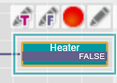 | 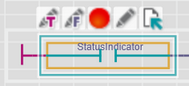 | 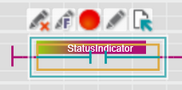 |
|
| Variable is ... | overwritable | forcable but currently unforced | forcable and currently forced to TRUE |
The variables are shown in their online colors/representation and they are additionally surrounded by a colored frame.
Quick Setting Booleans by double-clicking
As an alternative to the buttons on the in-place toolbar, you can also quick set by double-clicking the corresponding Boolean object. The action triggered by the double-click depends on the variable/port type and its current state:
| Object is | Current state | Double-click results in... |
|---|---|---|
| Forcable | FALSE/unforced | Forcing to TRUE |
| FALSE/forced | Forcing to TRUE | |
| TRUE/unforced | Forcing to FALSE | |
| FALSE/forced | Forcing to FALSE | |
| Overwritable | FALSE | Overwriting to TRUE |
| TRUE | Overwriting to FALSE |
Setting the display mode
Some data types provide different possibilities of displaying their online values. To adapt the display, double-click the value of the variable. (Alternatively, right-click the variable and select 'Overwrite/Force...' from the context menu.) In the appearing control, click the drop-down arrow on the right and select the desired display format.

| Display mode | available for | Meaning |
|---|---|---|
| Textual (True / False) | Boolean variables | Displays the value TRUE or FALSE with different background colors. |
| Label | Boolean variables with defined pragma | Displays the pragma label defined for the variable values TRUE/FALSE. |
| Label Highlighted | Boolean variables with defined pragma | Combines the displays of the pragma label defined for the variable values TRUE/FALSE with the background colors for TRUE or FALSE. |
| LED | ANY_BIT variables including BOOL | Displays an LED symbol instead of value or label: FALSE =  and TRUE =  In case of ANY_BIT variables > BOOL, one LED is shown per digit. Example for a BYTE variable:  |
| Hexadecimal | ANY_BIT variables except BOOL | Displays the ANY_BIT variable as hexadecimal value with the prefix 16#. |
| Decimal | ANY_BIT variables except BOOL and ANY_REAL | Displays the ANY_BIT variable as decimal value. |
| Binary | ANY_BIT variables except BOOL | Displays the ANY_BIT variable as bit string with the prefix 2#. Example for a BYTE variable:  |
| Exponential | ANY_REAL variables | Displays the value in exponential representation. Example for an LREAL variable:  |
| Note
You can remove all display formats individually set for the online variables in the project via the 'Extras > Options' dialog. In the category 'Online | Online Values', press the 'Reset' button under the 'Reset all formatters of current project' group to reset the format. |
What do you want to do?
| Note
In order to debug user-defined functions/methods and/or to show the execution value (actual value at the code position) in online worksheets, you have to select the required extended debug option in the controller Cockpit. Refer to the sections "Extended debugging: execution values vs. "normal" online values" and "Extended debugging of user-defined functions, methods, and SFC actions/transitions" for details. |
 Force/overwrite a variable in an online code worksheet


How to quick set (force/overwrite) a Boolean value (in graphical standard code only)
Force/overwrite a variable in an online variables table or Data List

Force/overwrite a variable in the WATCHES window


