Configuring the Controller as a Publisher
This topic contains the following sections:
- How to add a new writer group
- Editing writer group properties
- How to add a writer to a group and assign a data set
- How to delete writer groups or writers
Publishing means writing port/variable values to a defined network where they can be read by accordingly configured subscribers.
The addressed network is specified by the 'Network address' (Multicast address) which you have defined for a particular connection (see topic "Configuring Connections for Publishing/Subscribing"). For that reason writers have to be defined under a 'Connection' node, i.e., as child elements of the connection.
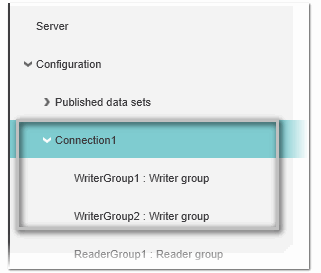
Writers are organized in so-called writer groups. Each connection may contain one or several writer groups. A group, in turn, can contain one or more writers.
Which data a writer publishes to the network is defined by selecting a previously defined data set.
How to add a new writer group
| Note
In addition to manually adding a new writer group as described in the following procedure, you can also import a writer group with the contained writers from an external PubSub configuration of a remote OPC UA server. See the topic "Importing External Configurations from Remote Servers" for details. |
- Double-click the 'OPC UA' PLANT tree node and open the 'PubSub' editor.
- In the tree on the left, select the 'Connection' under which you want to add writers.
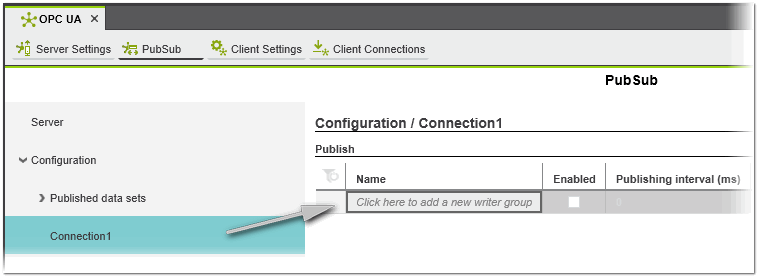
- In the 'Publish' table on the right, click into the 'Click here to add...' field, enter a meaningful name or leave the default name and press <Enter> or click anywhere outside the table to confirm. A new writer group is added to the table.
 The writer group is also added to the tree.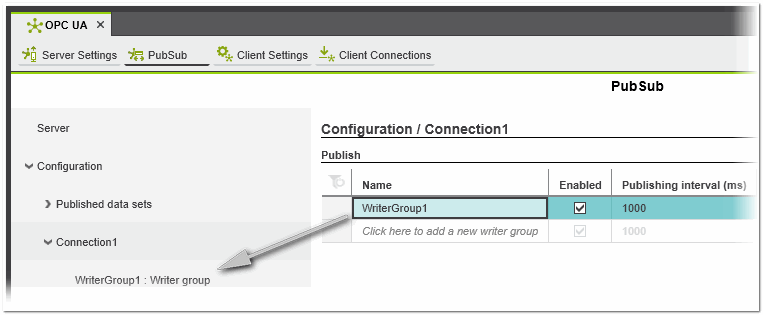
- Leave the 'Enabled' checkbox checked by default if you want the group to be active for publishing in the current project.
If you want the group to be idle, deselect the checkbox.Note
When a writer group is deactivated, all writers will be inactive, even if they are set to 'Enabled'. Furthermore, a writer group is inactive even if the checkbox is activated and the corresponding connection is not enabled. - In the 'Publishing interval' field, specify the time interval (in milliseconds) at which the writers in this group publish their data on the network.
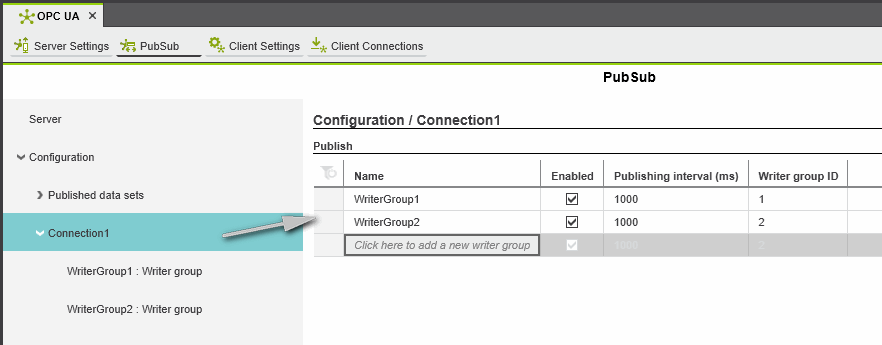
- Edit the 'Writer group ID' if necessary. The 'Writer group ID' uniquely identifies the writer group within the connection (which in turn is identified by its Publisher ID). The number is assigned automatically after insertion. Please note that group IDs must be unique within a connection. The ID 0 is not allowed.
Note
A subscriber identifies the publisher from which data is to be read using a combination of the Writer ID, Writer group ID, and Publisher ID. - Continue with adding/specifying writers in this group.
Editing writer group properties
The properties of writer groups can be viewed and edited in the 'Publish' table (table of the 'Connection' node).
How to add a writer to a group and assign a data set
- In the tree on the left, select the desired writer group under the 'Connection' node.
- In the 'Writers' table on the right, click into the 'Click here to add...' field and enter a meaningful writer name or leave the default name.
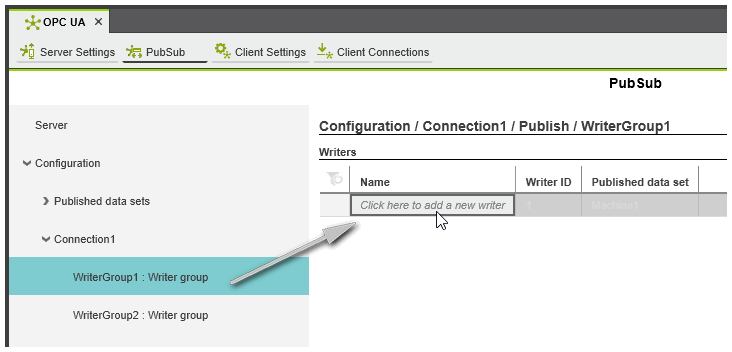
- Edit the Writer ID if necessary. The Writer ID uniquely identifies the writer within the group. The number is assigned automatically after insertion. Please note that this Id must be unique within the configuration. The ID 0 is not allowed.
Note
A subscriber identifies the publisher from which data is to be read using a combination of the Writer ID, Writer group ID, and Publisher ID. - In the 'Published data set' column, select the data set that the writer should publish to the network. Click into the field and select the desired data set (the drop-down list contains all previously defined data sets).
According to the selected data set, the writer will publish the values contained in this data set in the defined publishing interval to the network specified in the connection settings.Note
Each writer must be assigned a valid data set. If no data sets are defined in the current configuration and you confirm the writer, a corresponding error is reported. To remove the error, first define a data set as described in the topic "Defining Data Sets to be Published".
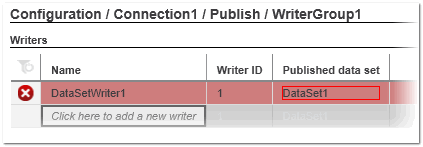
Note
Data sets are reusable. They can be selected several times, i.e., published by several writers. - Press <Enter> or click anywhere outside the table to confirm the writer.
How to delete writer groups or writers
To delete one or more writer groups, select the group(s) in the 'Publish' table of the 'Connection' category and press the <Del> key. (Multi-selection can be done by pressing the <Ctrl> key or <Shift> key while clicking on the desired table lines. <Ctrl> + <A> selects all table lines.)
To delete one or more writers, select the writer(s) in the 'Writers' table of the 'WriterGroup' category and press the <Del> key.