Configuring the Controller as a Subscriber
This topic contains the following sections:
- How to add a new reader group
- Editing reader group properties
- How to add a reader to a group and map target (local) variables
- Editing reader properties
- How to delete reader groups or readers
Subscribing means reading data sets (values) from a defined network to which these values have been written by accordingly configured publishers.
The network from which data is read is specified by the 'Network address' (Multicast address). You defined this network address when you created the particular connection (see topic "Configuring Connections for Publishing/Subscribing").
For that reason readers have to be defined under a 'Connection' node, i.e., as child elements of the connection.
Readers are organized in so-called reader groups. Each connection may contain one or several reader groups. A group, in turn, can contain one or more readers.
Which data a reader subscribes is defined by uniquely specifying the publishing writer. For that purpose, each reader has to know the Publisher ID, the Writer group ID and the Writer ID it has to listen to.
How to add a new reader group
| Note
In addition to manually adding a new reader group as described in the following procedure, you can also import a reader group with the contained readers from an external PubSub configuration of a remote OPC UA server. See the topic "Importing External Configurations from Remote Servers" for details. |
- Double-click the 'OPC UA' PLANT tree node and open the 'PubSub' editor.
- In the tree on the left, open the 'Connection' under which you want to add readers.
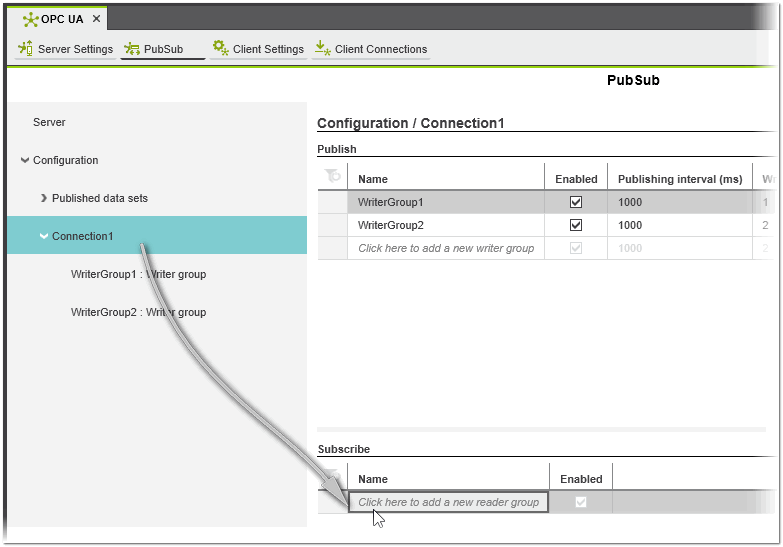
- In the 'Subscribe' table on the right, click into the 'Click here to add...' field, enter a meaningful name or leave the default name and press <Enter> or click anywhere outside the table to confirm. A new reader group is added to the table.
 The reader group is also added to the tree.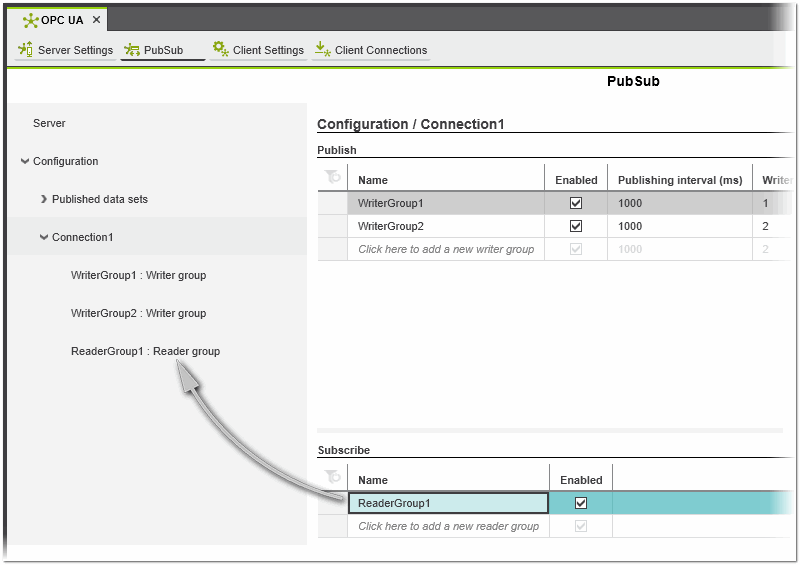
- Leave the 'Enabled' checkbox checked by default if you want the group to be active for subscribing in the current project.
If you want the group to be idle, deselect the checkbox.Note
When a reader group is deactivated, all readers will be inactive, even if they are set to 'Enabled'. Furthermore, a reader group is inactive even if the checkbox is activated and the corresponding connection is not enabled. - Continue with adding/specifying readers in this group.
Editing reader group properties
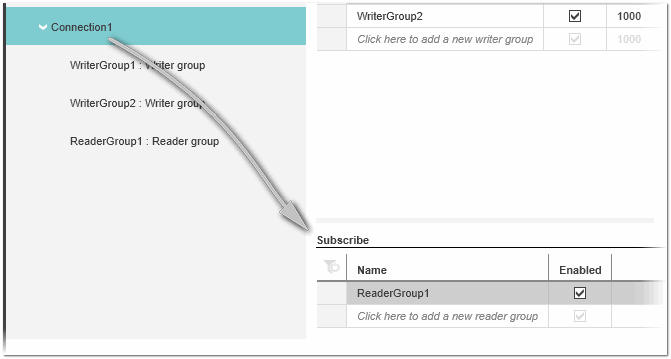
The properties of reader groups can be displayed and edited in the 'Subscribe' table (table of the 'Connection' node).
How to add a reader to a group and map target (local) variables
- In the tree on the left, select the desired reader group under the 'Connection' node.
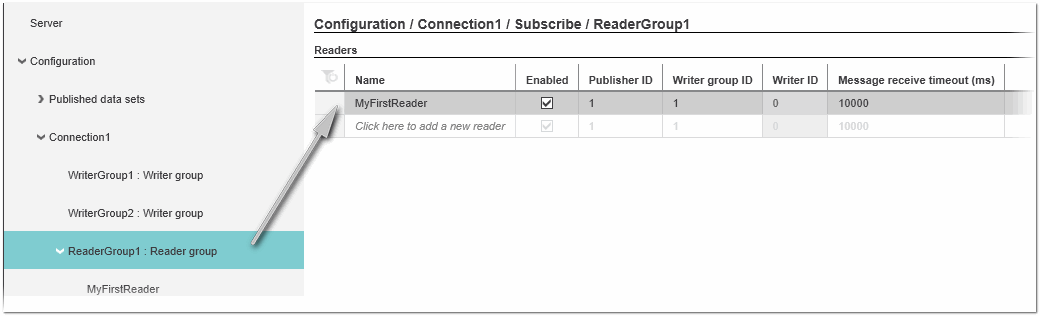
- In the 'Readers' table on the right, click into the 'Click here to add...' field, enter a meaningful name or leave the default name and press <Enter> or click anywhere outside the table to confirm. A new reader is added to the table.
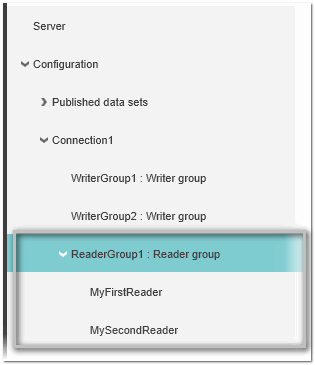
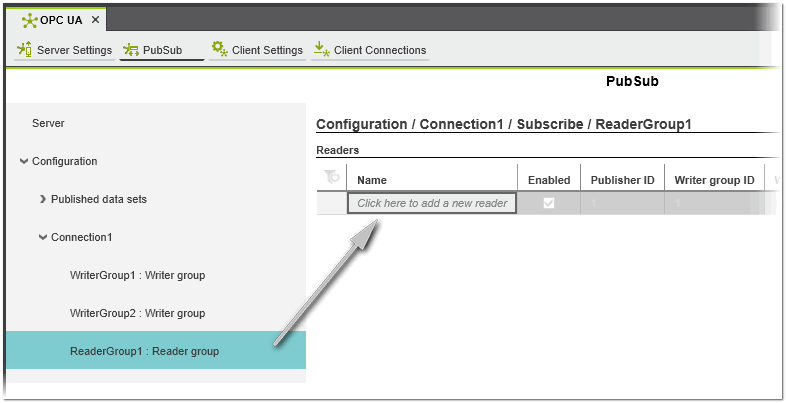 The reader is also added to the tree.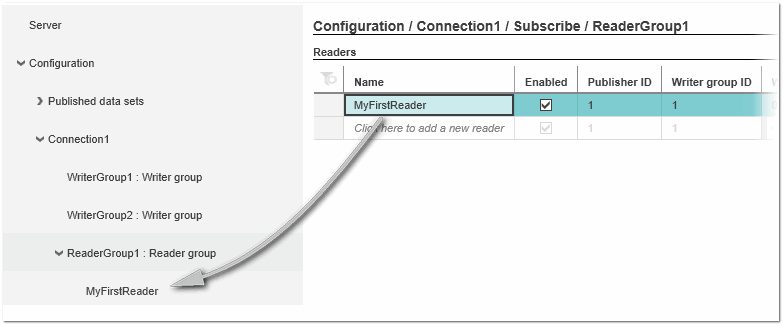
- Leave the 'Enabled' checked by default if you want the reader to be active for subscribing in the current project.
If you want the reader to be idle, deselect the checkbox.Note
A reader will be inactive even if the checkbox is selected if the corresponding reader group or connection is not enabled. - Specify the publisher from which data is to be read.On insertion of the new subscriber, Publisher ID, Writer group ID, and Writer ID are set to 0 by default.
Enter the Publisher ID and Writer group ID which have been specified for the writer in the publishing controller. The Writer ID can not be edited. The read-only value 0 means that the subscriber reads all data from all writers in the specified publisher writer group.Note
A subscriber identifies the publisher from which data is to read using a combination of the Writer ID, Writer group ID, and Publisher ID. - Define a 'Message receive timeout' interval by entering a value in milliseconds.If this interval is exceeded without receiving data from the specified publisher, a notification is output in the controller Cockpit (category 'Notification').
-
Map local variables to values read from the publisher.The values read from a publisher must be mapped to local variables declared in the current project.Rules for mapping local variables:
- The order of the read variables is specified by the publisher, more precisely, when creating the published data set in the "publisher project".
- The PubSub communication supports IN ports (but no OUT ports) as local ports and resource-globals (no locals or In/Out variables) as local variables.
- The data type of mapped local variables must match the data type of the subscribed values.
- Local variables must already be declared in the current project in order to be selected here.
The mapping of local variables is only possible in the properties page of the reader. Select the reader node in the tree to open its property page.Note
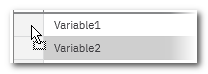
Since the configuration of publishers and the subscribers takes place in different projects, there can be no automatic check for these rules. When configuring the reader, you must ensure that the necessary information on the values contained in the subscribed data set is available and considered.According to the defined mapping, the reader will receive the values contained in the specified data set in the defined publishing interval from all writers specified by the Publisher ID and Writer group ID.You can change the order of the inserted variables by dragging & dropping them within the table: Click on an entry in the row header and hold down the mouse button while moving the mouse.- In the 'Variables' table on the right, click into the empty 'DataSet variable' field.
A new variable is inserted with a default name. If desired, change the name to the name of the corresponding variable in the received data set.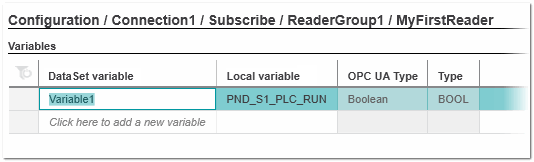
- In the 'Local variable' field, select the desired local variable (the drop-down list contains all suitable variables (IN ports and globals) defined in the project).
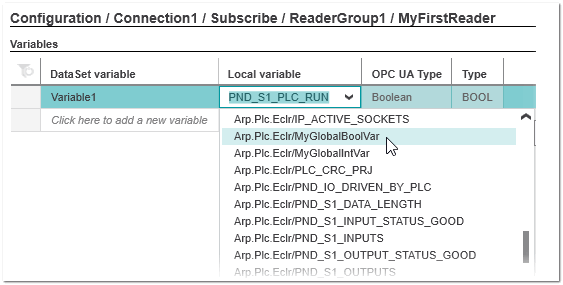
- Repeat these steps for all variables to be subscribed by this reader.
 Example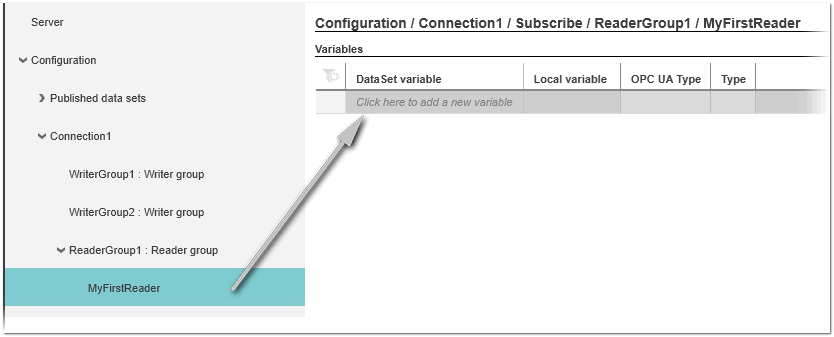
Editing reader properties
The properties of readers can be displayed and edited in the 'Readers' table (on the 'Reader Group' node).
How to delete reader groups or readers
To delete one or more groups, select the group(s) in the 'Subscribe' table of the 'Connection' category and press the <Del> key. Multi-selection can be done by pressing the <Ctrl> key or <Shift> key while clicking on the desired table lines. <Ctrl> + <A> selects all table lines.
To delete one or more writers, select the writer(s) in the 'Writers' table of the 'WriterGroup' category and press the <Del> key.